What it does
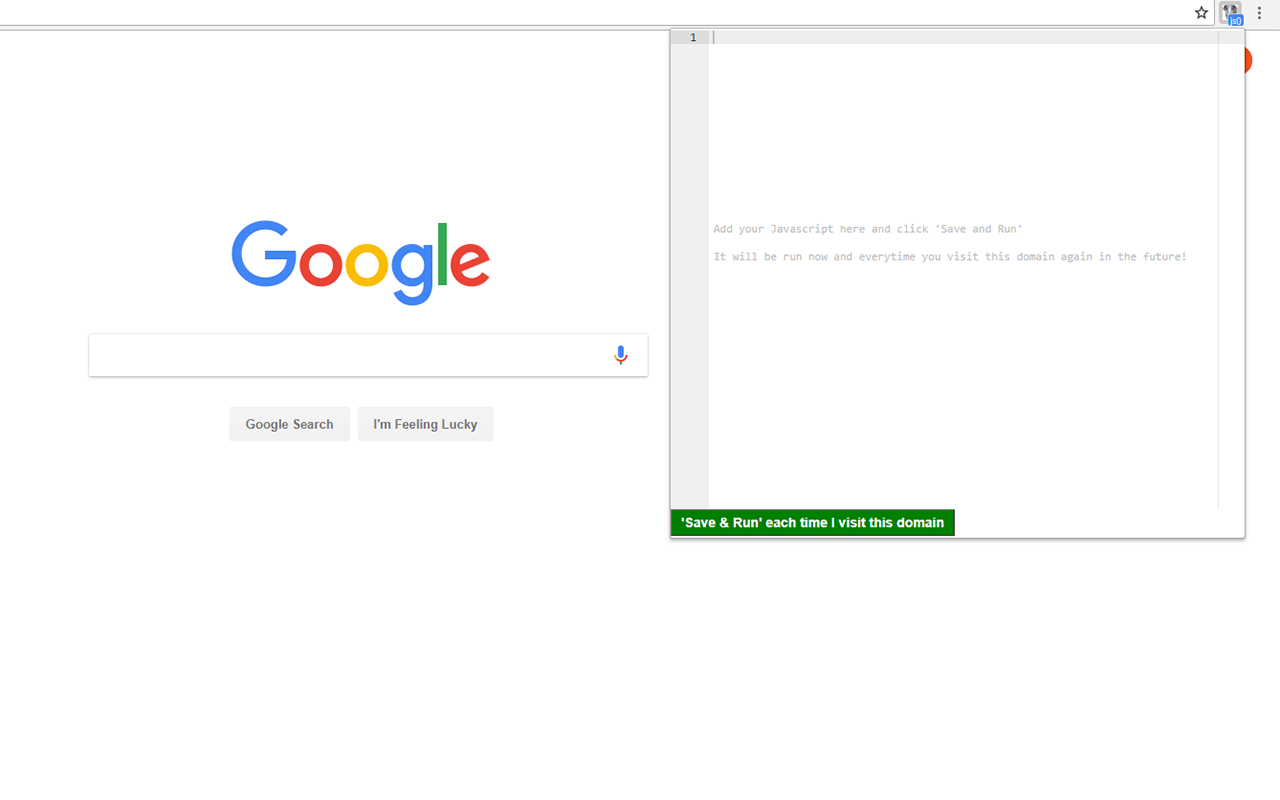
Run JavaScript lets you write and save custom JavaScript that executes automatically every time you visit a website. Scripts are saved per-domain and persist across sessions.
25,000+ users · ★ 4.1 on Chrome Web Store
Install from Chrome Web Store →
Quick start
- Visit any website
- Click the Run JavaScript icon in your toolbar
- Write your script in the editor
- Click Save & Run
- Refresh the page — your script runs automatically
Features
Per-site scripts — Each domain gets its own saved script. Visit the site and it runs automatically.
Code editor — Syntax highlighting, line numbers, and bracket matching powered by Ace Editor.
jQuery included — Choose from jQuery 1.12.4, 2.2.4, or 3.3.1, or use vanilla JS.
Import/Export — Back up all your scripts to a JSON file and restore them on any machine.
Enable/Disable — Toggle scripts on or off per domain without deleting them.
Common use cases
Remove distractions:
document.querySelectorAll('[class*="ad"], .sidebar, .popup').forEach(el => el.remove());
Auto-fill forms:
document.querySelector('#email').value = '[email protected]';
Custom styling:
document.body.style.maxWidth = '800px';
document.body.style.margin = '0 auto';
Add functionality:
document.addEventListener('keydown', e => {
  if (e.key === 'Escape') window.scrollTo(0, 0);
});
How scripts are stored
- All data stays in your browser (Chrome sync storage)
- Nothing is sent to external servers
- Scripts sync across your Chrome devices if sync is enabled
- Export creates a local JSON backup file
Keyboard shortcuts
| Shortcut | Action |
|---|---|
| Ctrl+Enter | Run script |
| Ctrl+S | Save & Run |
| Ctrl+A | Select all |
| Ctrl+/ | Toggle comment |
Troubleshooting
Script not running?
- Check the Enabled toggle is ON (green)
- Make sure you’re on the correct domain
- Some sites with strict CSP may block injected scripts
- Try refreshing the page after saving
Script runs on wrong pages?
- Scripts are saved per domain (e.g., all of github.com). Use
if (location.pathname === '/specific-page')to target specific pages.
Lost your scripts?
- Use the Export feature regularly to back up scripts
- Scripts are stored in Chrome sync storage and persist across sessions
Privacy & permissions
This extension requires access to web pages to inject your scripts. It does not:
- Collect any personal data
- Send data to external servers
- Track your browsing
- Include analytics
All code runs locally in your browser.
Support
Having issues? Contact us or leave a review on the Chrome Web Store .