VideoGrab — Chrome Extension
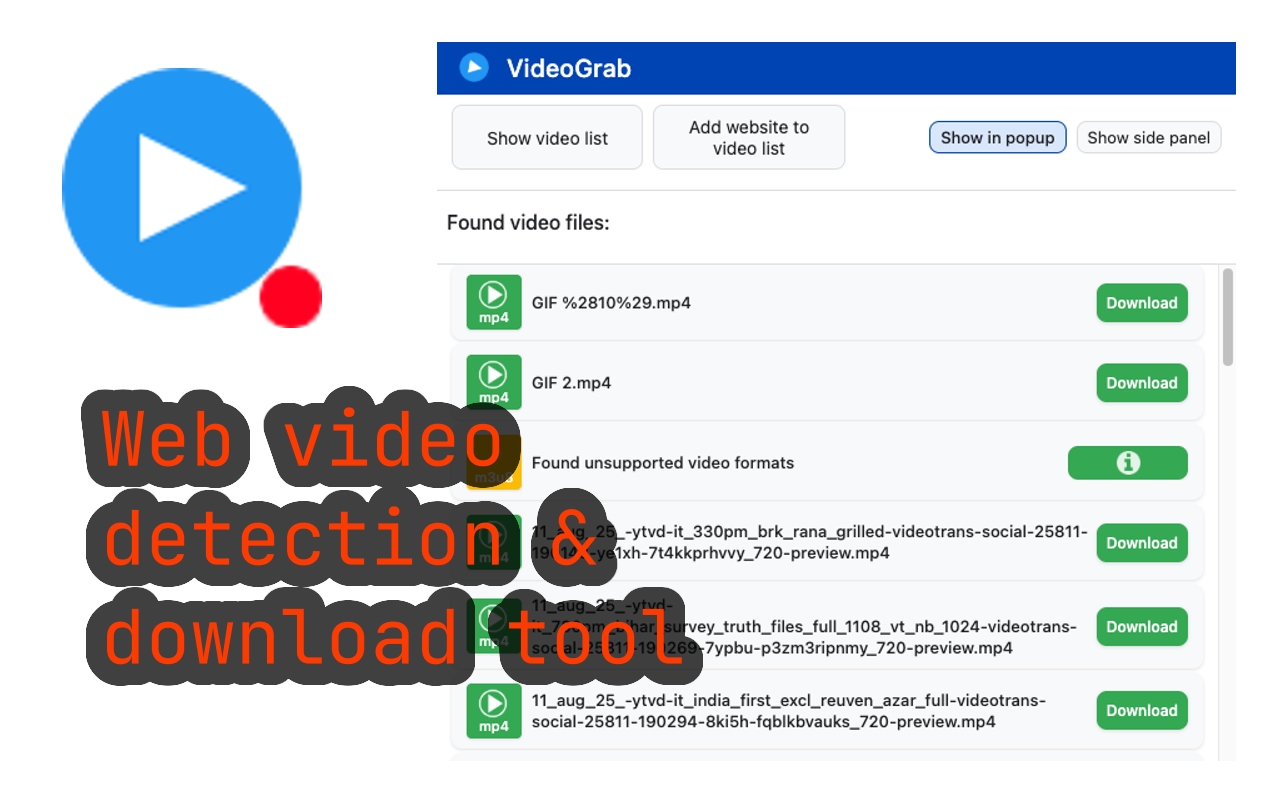
VideoGrab finds video files on the page you’re looking at and lets you download them with a single click. It scans the page source and network responses for MP4, WebM, M3U8, and other common video formats, then surfaces them in a side panel.
What it does
When you load a page that has video content, the VideoGrab icon turns green to tell you something is downloadable. Click it and you get a list of every video the extension detected — name, format, size, and a download button. Pick the quality you want and the file lands in your Downloads folder.
It works whether the video is a plain <video src="…"> tag, an HLS playlist (.m3u8), or buried inside the network requests a JS player makes after page load.
Who it’s for
- Users saving lecture videos, tutorials, and conference talks for offline viewing
- Researchers archiving public-domain or open-license video content
- Teachers and students who can’t rely on flaky lecture site availability
- Anyone tired of “right-click → save video” not appearing on modern HTML5 players
What it does NOT do
VideoGrab respects DRM. It does not bypass Widevine, FairPlay, PlayReady, or any other content protection system. That means:
- Netflix, Disney+, Amazon Prime Video, HBO Max, Apple TV+, and similar paid streaming services will not work. Their video is encrypted and the extension cannot decrypt it.
- Live streams that use rotating tokens may stop working partway through.
- Some sites use chunked/manifest-based formats where the extension grabs the manifest but you’ll need to merge the chunks separately.
This is a deliberate choice. Bypassing DRM is illegal under the DMCA in the US and similar laws elsewhere — VideoGrab will not help you do it.
How it differs from alternatives
Compared to “Video DownloadHelper” or generic “Save As MP4” extensions:
- Cleaner detection — surfaces only actual video resources, not every blob URL on the page
- No bundled “premium” upsell — the extension is free, no nag screens
- No companion native app required — older “helper” extensions made you install a separate Windows binary; VideoGrab works in-browser
- Privacy-clean — no analytics, no telemetry, no data sent anywhere
Install and use
- Install from the Chrome Web Store
- Visit a page with video content
- Wait for the icon to turn green
- Click the icon
- Click the download button next to the video you want
Privacy
The extension scans local page content and network requests in your browser. It does not transmit URLs or video data to any external service. No analytics, no signup, no account.
Frequently asked questions
Does VideoGrab work on Netflix or Disney+?
No. Those services use DRM (Widevine) which VideoGrab does not and will not bypass. Use them through their official apps.
What video formats does it support?
MP4, WebM, MOV, M4V, and HLS (.m3u8) playlists. The extension detects whichever format the site is actually serving.
The icon never turns green — why?
Either no detectable video is on the page, the video uses DRM, or the site loads video via a non-standard mechanism. Try refreshing the page after the extension is installed; some sites only signal video on initial load.
Is it legal to use?
The extension is legal. What you download with it is your responsibility — only save content you have the right to save (your own videos, public-domain content, Creative Commons-licensed material, or content where the site explicitly allows downloading).
See also: Ataiva Chrome extensions · VideoGrab help