Run JavaScript — Chrome Extension
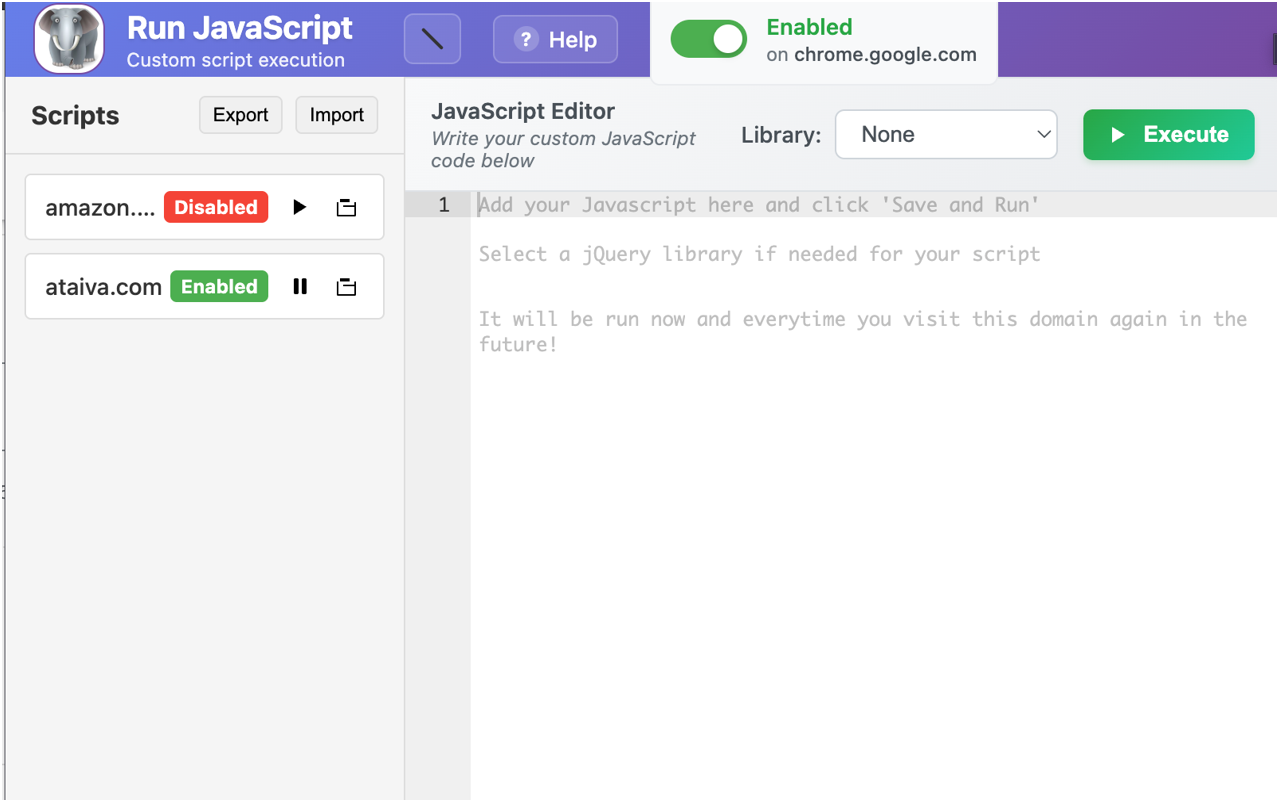
Run JavaScript is a Chrome extension that auto-executes custom scripts on any website you visit. Save a different script per domain, edit it in a real code editor, and have it fire every time the page loads.
25,000+ users · ★ 4.1 on the Chrome Web Store
What it does
You write a script once. From then on, every time you load a page on that domain, your script runs automatically. No DevTools console, no userscript manager, no per-page repetition.
The editor is built on Ace — syntax highlighting, line numbers, bracket matching. Code is stored in Chrome sync storage, so it follows you across machines as long as you’re signed in.
Who it’s for
- Developers debugging or instrumenting third-party sites
- QA engineers injecting test data into staging environments
- Power users who want to remove ads, hide elements, or restyle pages
- Anyone automating repetitive form fills or page tweaks
How it differs from alternatives
Tampermonkey and Greasemonkey are the obvious comparisons. Both are excellent userscript managers — but they’re built around a heavier metadata model (@match, @grant, @require) that’s overkill if you just want “run this code on this domain.”
Run JavaScript is the minimal version. One script per domain. Toggle it on or off. Optionally include jQuery (1.12.4, 2.2.4, or 3.3.1). That’s the whole product. The friction of writing a one-off snippet is near zero — open the popup, type, save.
It’s also unusually privacy-clean: no analytics, no cloud sync to third parties, no telemetry, no permissions beyond what’s needed to inject scripts.
Common scripts people save
Remove distractions on news sites:
document.querySelectorAll('[class*="ad"], .sidebar, .popup').forEach(el => el.remove());
Auto-fill staging environment login:
document.querySelector('#email').value = '[email protected]';
document.querySelector('#password').value = 'staging-pass';
Width-cap reading width on long-line sites:
document.body.style.maxWidth = '800px';
document.body.style.margin = '0 auto';
Add a custom keyboard shortcut:
document.addEventListener('keydown', e => {
  if (e.key === 'Escape') window.scrollTo(0, 0);
});
Install and use
- Install from the Chrome Web Store
- Pin the extension to your toolbar
- Visit any site, click the icon
- Type or paste your script, hit Save & Run
- Refresh — the script now runs automatically on every page on that domain
Toggle the per-domain switch off if you want to disable a script temporarily without deleting it. Use the Import/Export buttons to back scripts up to a JSON file.
Privacy
The extension requires <all_urls> permission to inject your scripts on the sites you choose to add them to. It does not collect data, send anything to servers, include analytics, or talk to anything outside your browser. Your scripts live in Chrome sync storage, which is end-to-end encrypted by Google.
Frequently asked questions
Does Run JavaScript work on all websites?
It works on any standard webpage. A small number of sites use strict Content Security Policy headers that block injected scripts — in those cases the script will fail silently. The extension can't override site CSP.
Can I share scripts between machines?
Yes. Scripts are stored in Chrome sync storage, so they automatically appear on any Chrome browser signed in to the same Google account. You can also export to JSON and import elsewhere.
Is it the same as Tampermonkey?
Similar idea, simpler product. Tampermonkey supports complex userscript metadata (multiple match patterns, GM_* APIs, requires). Run JavaScript is one script per domain with no metadata header — meant for quick automation, not full userscripts.
Is it free?
Yes, completely free. No paid tier, no signup, no upsell.
See also: other Chrome extensions from Ataiva · help and troubleshooting
Related developer tools on Ataiva
If you write scripts for the web, these in-browser tools pair well with Run JavaScript:
- JSON Formatter — pretty-print, validate, and minify JSON payloads from your fetch calls.
- Regex Tester — test regex against multiple inputs before committing to a script.
- Cron Expression Generator — build cron expressions for scheduled scripts.
- Base64 Encoder/Decoder — encode binary data for inline scripts.
- JWT Decoder — decode JWT auth tokens to debug API calls.
- Unix Timestamp Converter — convert timestamps when scripting against APIs.